Few things stop a LinkedIn prospecting programme faster than logging in to a message saying your LinkedIn account is restricted. Your pipeline pauses, conversations go unanswered and, if you rely on LinkedIn for new business, the pressure builds quickly.
The good news is that many restrictions are temporary and can be resolved by following LinkedIn’s own steps. This guide explains the main reasons a LinkedIn account gets restricted, what to do in the first hour, how identity verification works, and how UK B2B teams can keep prospecting without putting their profile at risk. We stick to what LinkedIn publishes in its Help Centre and say clearly where the platform keeps the detail to itself.
What does “LinkedIn account restricted” actually mean?
A restriction means LinkedIn has limited what you can do on your account. Depending on the reason, you might be unable to sign in at all, or you might be able to sign in but not send connection invitations. LinkedIn does not publish a single list of every restriction type, but its Help Centre describes a few common situations.
Full account restrictions
These usually appear when you try to sign in. LinkedIn may ask you to verify your identity before it restores access, or it may tell you the account has been restricted for a set period because of activity that breaks its User Agreement.
Invitation restrictions
These are narrower. You can still use LinkedIn, but you cannot send new connection requests for a while. LinkedIn says this can happen when you send many invitations in a short time, when lots of your invitations are pending or ignored, or when recipients mark them as spam or say they do not know you. We cover these limits in detail in our guide to LinkedIn connection limits.
Common reasons LinkedIn restricts accounts
LinkedIn rarely gives a detailed explanation for an individual restriction, but its published guidance points to a handful of recurring causes.
1. Automation tools and browser extensions
LinkedIn’s Help Centre is explicit: it does not allow third-party software, bots, browser plug-ins or extensions that scrape, modify the appearance of, or automate activity on its website. It says these tools breach Section 8.2 of the User Agreement. If your account is restricted for automated activity, LinkedIn asks you to review and disable the software or extension, after which the account is re-enabled at the time stated in the notice.
This is the most common cause we hear about from businesses that have tried cheap automation tools. If you want to understand the difference between risky tools and a managed approach, read our article on whether LinkedIn automation is safe.
2. Too many invitations, too quickly
Sending a large batch of connection requests in a short window, especially to people who do not know you, is a well-known trigger. LinkedIn applies invitation limits to all members, Basic and Premium alike, and it does not publish a fixed weekly number.
3. Unusual sign-in or security concerns
If LinkedIn sees activity that suggests someone else may be using your account, such as sign-ins from unexpected places, it may lock the account and ask you to confirm you are the rightful owner. This protects you as well as your contacts.
4. Fake profiles and inauthentic engagement
LinkedIn does not permit fake accounts or fake engagement, including tools or services that try to manipulate its content algorithms. Buying engagement pods, shared logins or “rented” profiles can all lead to restrictions.
5. Content or behaviour that breaks community policies
Repeated reports from other members, spammy messages or content that breaches LinkedIn’s Professional Community Policies can also lead to action against an account.
How to recover a restricted LinkedIn account: step by step
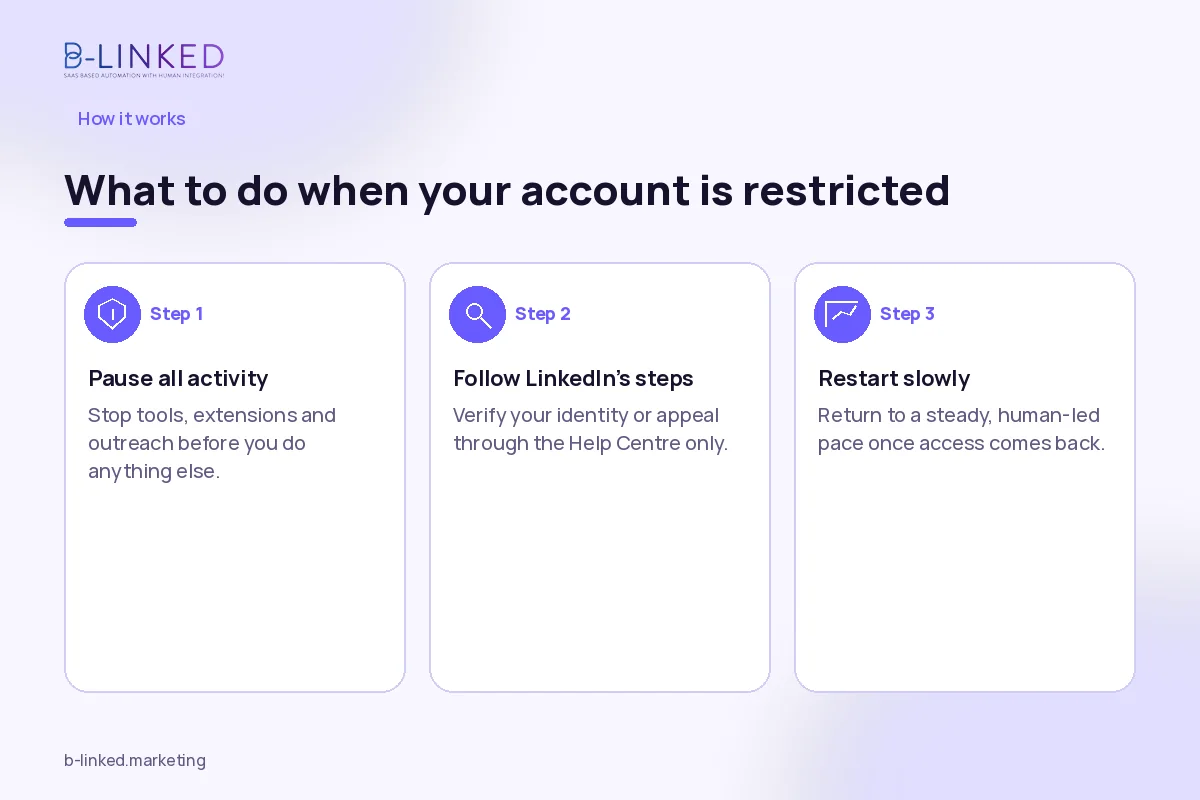
The right route depends on the notice you see, so start by reading it carefully. Then work through these steps.
Step 1: Stop and do not create a new account
It is tempting to open a fresh profile and carry on. Do not. LinkedIn’s User Agreement allows one account per person, and a second profile can make the situation worse. Pause any scheduled outreach and campaigns that run through the account.
Step 2: Disable any automation tools or extensions
If there is any chance automation is involved, switch off and remove the tool or browser extension straight away. LinkedIn’s guidance for automated-activity restrictions is to disable the software, after which the account is re-enabled at the time specified in the notification. Revoking the tool’s access also stops it reconnecting once you are back.
Step 3: Verify your identity if asked
Where LinkedIn needs to confirm you own the account, it uses Persona, its identity verification provider. According to LinkedIn’s Help Centre:
- You will be asked to upload a digital ID or a clear photo of a valid government-issued ID card, driving licence or passport.
- In some cases Persona will ask for a photo of you to check that your face matches the ID.
- You will need a smartphone to photograph your ID, and every part of it must be clear and legible.
- LinkedIn says it does not receive your biometric data or your ID number, and that the data is generally deleted within 14 days of submission.
If you do not want to submit ID or a photo of yourself, LinkedIn lists other ways to recover your account in the same Help Centre article.
Step 4: Contact LinkedIn with a short, factual message
If you believe the restriction is a mistake, or you want to give LinkedIn more context, use the contact option shown in the notice or the Help Centre. Keep it brief and honest: explain what happened, what you have changed (for example, removing a tool) and that you will follow the User Agreement going forward. Sending several long or angry messages will not speed things up.
Step 5: Wait for the restriction to lift
For invitation restrictions, LinkedIn says a first restriction often means waiting a few hours, repeated restrictions can mean a few days, and having too many outstanding invitations can mean waiting up to a month. Most lift automatically, so patience is usually the fastest route.
Step 6: Secure the account once you are back in
Change your password, turn on two-step verification and review the devices and apps connected to your account. LinkedIn also recommends changing your password regularly to prevent unauthorised access.
How to avoid a LinkedIn restriction in future
Recovery is stressful. Prevention is far easier, and it also tends to produce better results, because the habits that keep an account safe are the same habits that get replies.
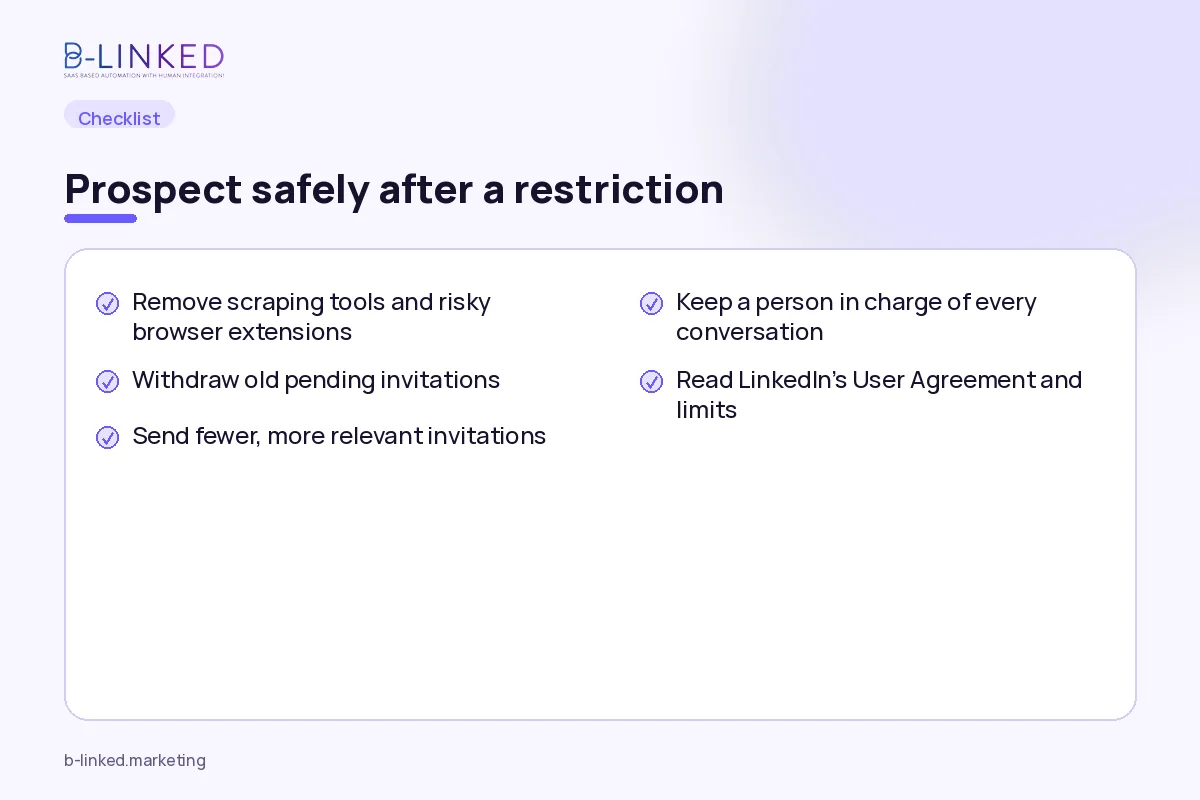
- Target tightly. Invite people with a genuine reason to connect: the right role, sector and company size. Relevant invitations are accepted more often and marked as spam less often.
- Keep a steady pace. Spread activity across the week rather than sending large bursts, and ramp up gradually on newer or quieter profiles.
- Withdraw old invitations. A big backlog of pending requests is one of the triggers LinkedIn lists, so tidy it up regularly.
- Write like a person. Short, specific messages beat long pitches. Our guide to LinkedIn outreach messages that get replies includes templates you can adapt.
- Avoid scraping and unapproved tools. Anything that scrapes data or automates clicks on LinkedIn’s website is against its rules.
- Keep a complete profile. A real photo, a clear headline and a summary written for your buyers make your invitations look trustworthy.
When to bring in a managed LinkedIn partner
If your team has had one restriction, it is worth asking whether your current approach is sustainable. A specialist can plan activity around LinkedIn’s rules, keep a human in charge of conversations and give you a predictable flow of sales conversations without the risk of losing your profile.
At B-Linked we run compliant LinkedIn lead generation for UK B2B companies from our base in Salford. We plan targeting, pace and messaging carefully and review every conversation, and our LinkedIn outreach agency service handles replies and books meetings into your calendar. If you would rather hand over the whole process, see our B2B appointment setting service.
FAQ: LinkedIn account restricted
Why has my LinkedIn account been restricted?
LinkedIn restricts accounts for reasons including automation tools or browser extensions, sending too many invitations too quickly, many ignored or reported invitations, suspected unauthorised access, fake engagement and breaches of its community policies. The notice you see usually indicates which applies.
How long does a LinkedIn restriction last?
It depends on the type. LinkedIn says invitation restrictions often last a few hours the first time, a few days if repeated, and up to a month when too many invitations are outstanding. Automated-activity restrictions lift at the time stated in the notice once the tool is disabled.
Do I have to upload ID to recover my LinkedIn account?
Not always. LinkedIn uses Persona to verify identity with a government-issued ID, and sometimes a photo of you. If you do not want to share ID or a photo, LinkedIn’s Help Centre lists other ways to recover your account.
Can I just create a new LinkedIn account instead?
We would not recommend it. LinkedIn’s User Agreement allows one account per person, and opening another profile while one is restricted can lead to further action against both.
Is LinkedIn automation always against the rules?
LinkedIn does not permit third-party software or extensions that scrape, modify or automate activity on its website. The safest approach is human-led outreach at a sensible pace, which is how we run campaigns at B-Linked.
Book a Call
Had a restriction, or want to make sure you never do? Book a Call with B-Linked and we will review your profile, your current outreach and how a safe, managed LinkedIn programme could work for your business.